Tell FrappeOps what you need in plain English. It builds the automation, runs it inside your ERPNext or Frappe site, and checks with you before anything important happens.
Works with ERPNext or any app on your Frappe site
Asks before it sends, submits or changes anything
Connects to any MCP server, like Slack and GitHub
MRYou ask
Every weekday morning, find overdue invoices, write a short summary for finance, and let me check it before it's sent.
FrappeOps sets it up
Every weekday at 8:00
Find overdue invoices
Write the summary
Check with youwaits for you
Email finance
Send the overdue-invoice summary?Ready for you to read first
ReviewApprove
Built for teams running
ERPNextAny app built on FrappeYour own custom apps
Your system holds the data. Your team still does the chasing.
Follow-ups done by hand
Overdue payments, unanswered quotes, stock running low. Someone has to notice, then remember to act.
Copying between tools
Updates get retyped into emails and chat messages, one record at a time.
Waiting on a developer
Even a small automation usually means a script, a ticket, and a wait.
FrappeOps turns a sentence into work that gets done, with you in the loop.
Workflow automation in three steps. No code.
These are real screens from FrappeOps, running on a test site.
1
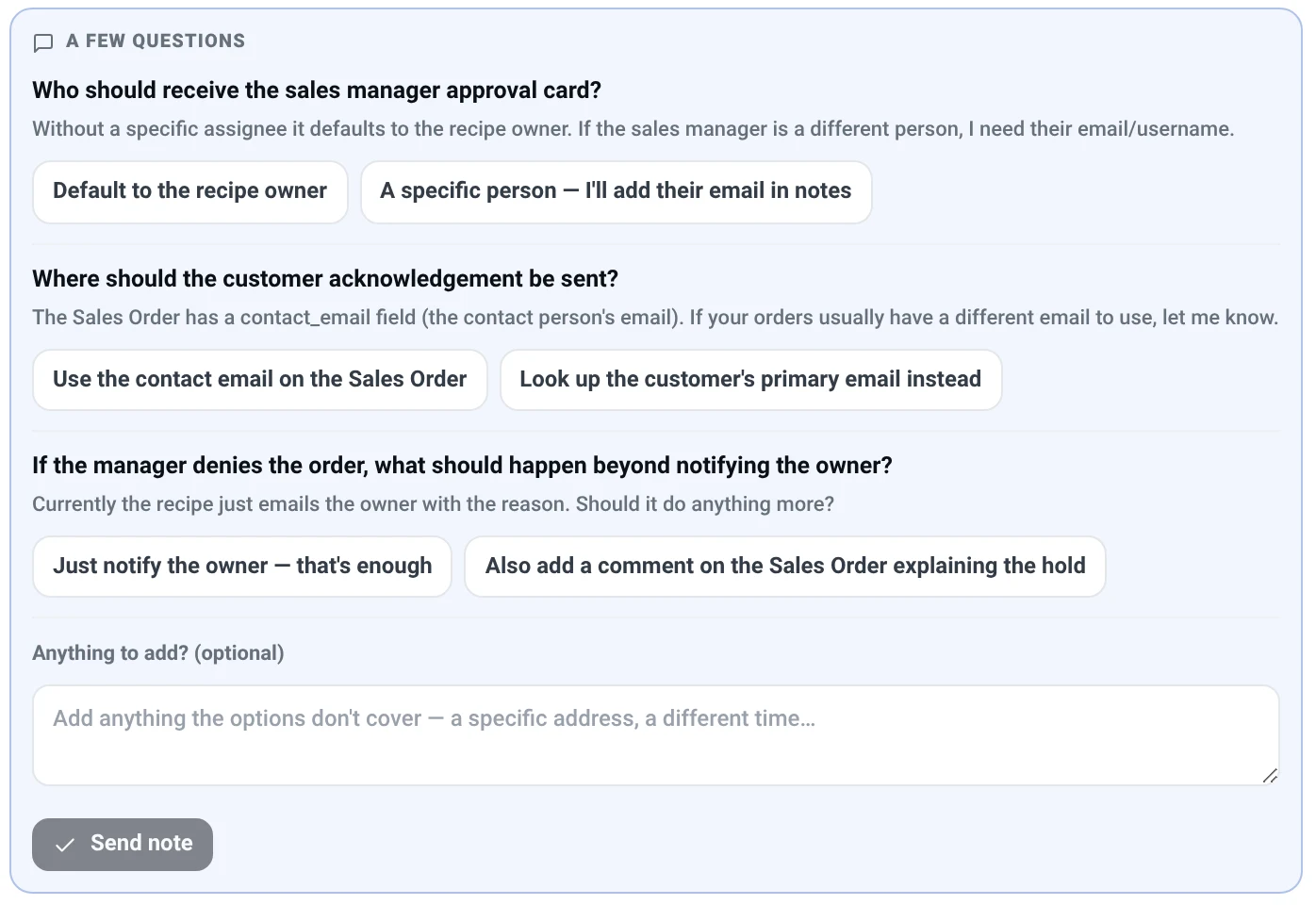
Say what you want
Write it the way you'd explain it to a colleague. If something isn't clear, FrappeOps asks you instead of guessing.
Uses the records and fields your site already has
Or start from a ready-made example
2
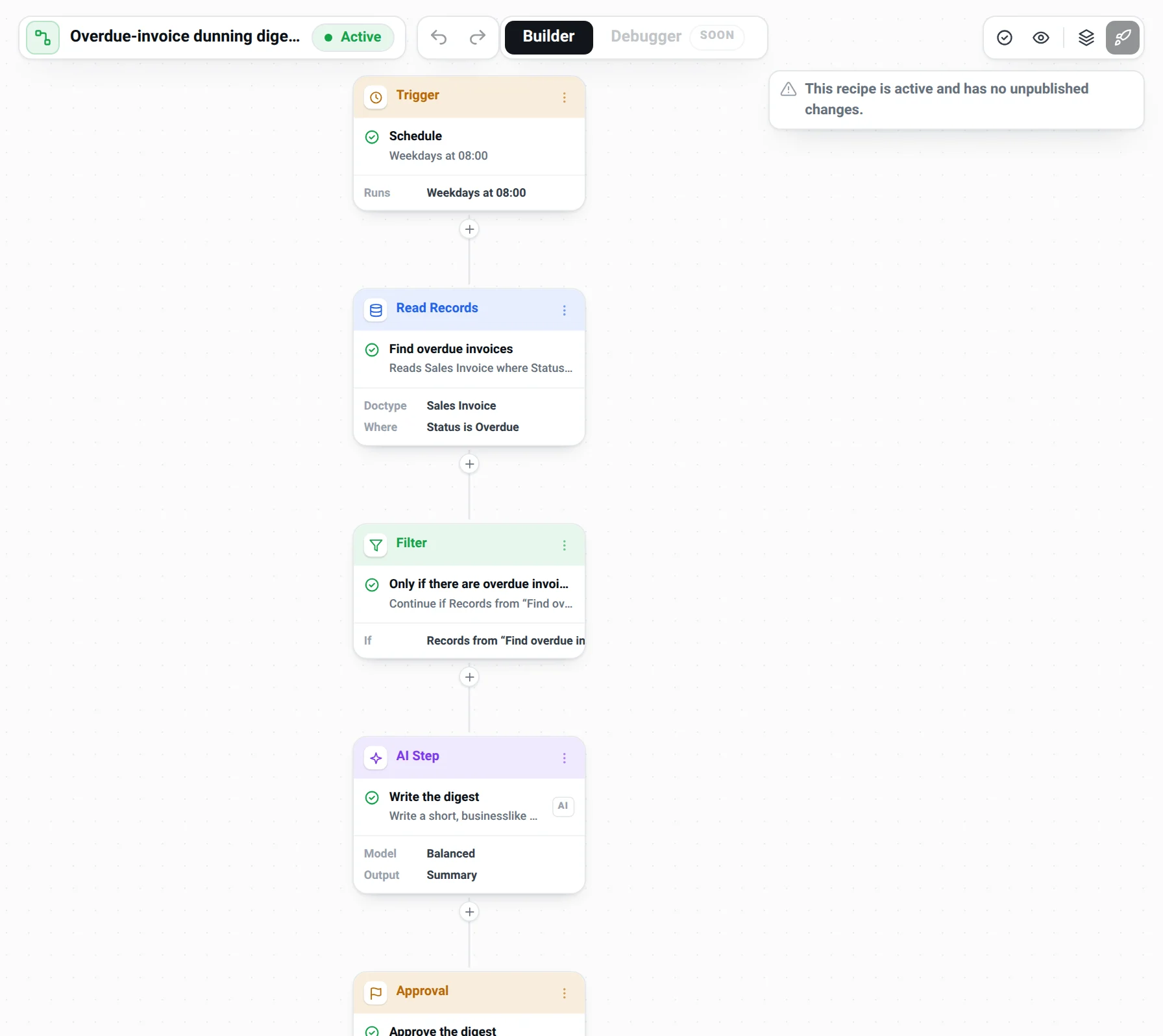
See it before it runs
Your workflow appears as simple steps you can read top to bottom. Nothing runs until you switch it on.
Want a change? Just ask: "only when the total is above 50,000"
Try it first without touching real data
3
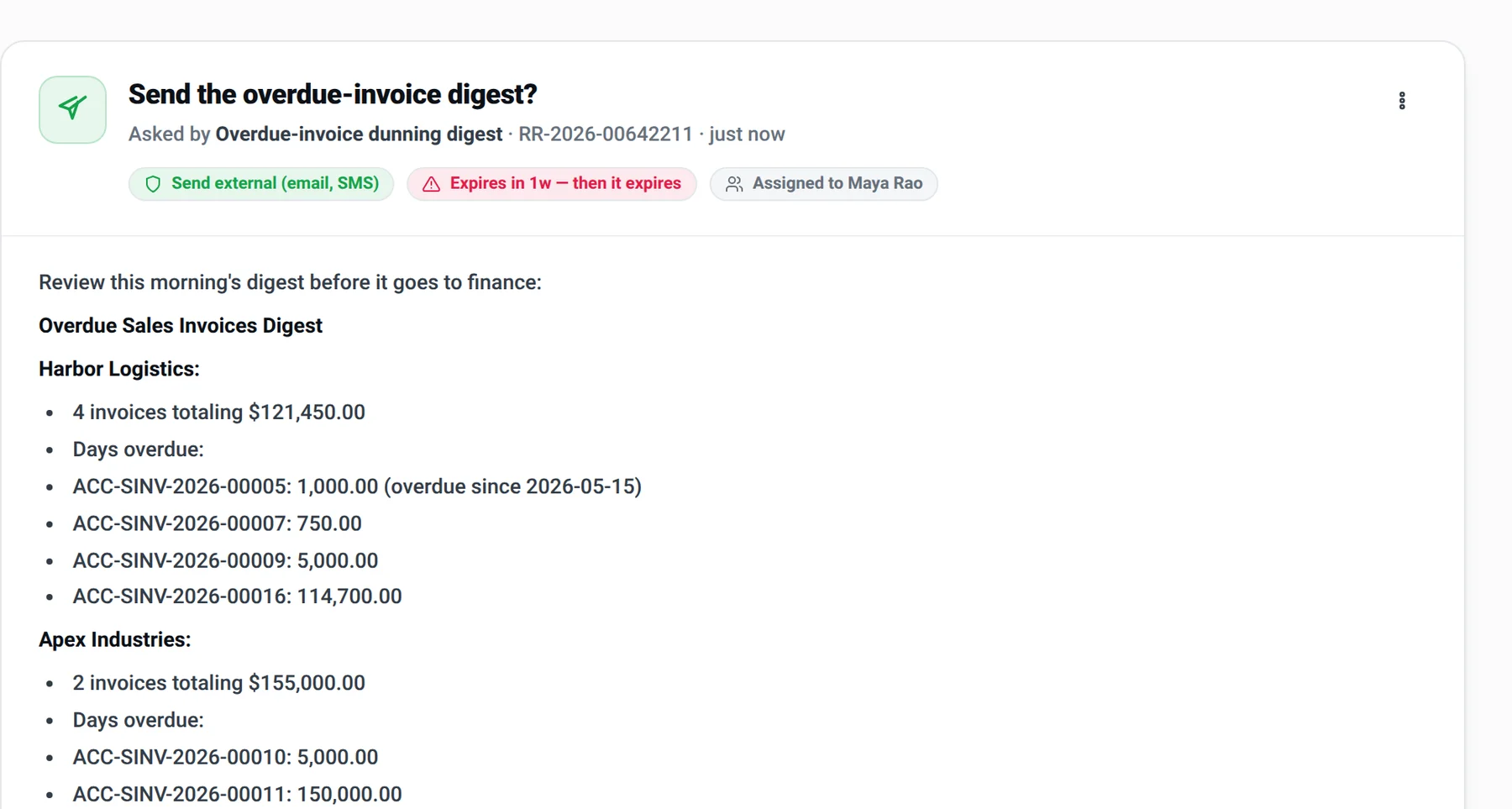
Approve, and it carries on
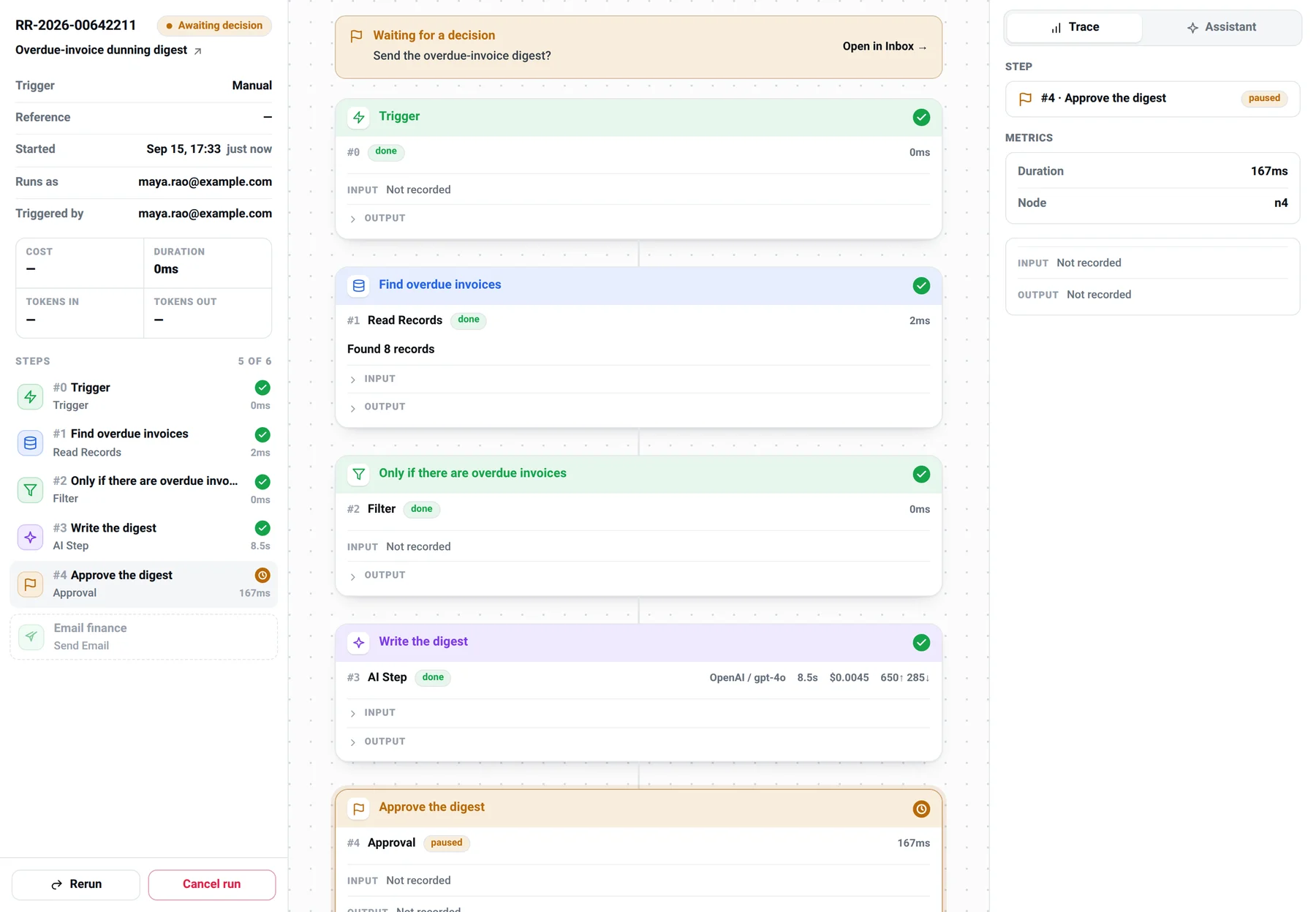
When something needs your OK, you get the full picture: the email as it will be sent, the records involved, what happens next. Approve, say no, or reply with changes.
Nothing goes out until you say yes
Trust a step once, and it stops asking
What teams hand over to FrappeOps
Pick your team. Each example is something you can ask for in your own words.
Chase overdue invoices
Each weekday, summarise overdue invoices by customer and email finance after I check it.
Finance starts the day with one clear list instead of building it by hand.
Review big orders
When a large sales order comes in, summarise it with the customer's unpaid balance and ask the sales manager before replying.
Big orders get a second look, with the numbers already pulled together.
Start with a morning briefing
Every morning, tell me what's waiting for my approval and what went wrong overnight.
One email, and you know where the day stands.
Sort new leads
When a new lead arrives, grade how promising it is and send it to the right rep with a heads-up.
Hot leads reach a person quickly, not at the end of the week.
Follow up on quotes
Three days after we send a quote, if the customer hasn't replied, draft a friendly nudge for me to approve.
No quote goes quiet because someone forgot.
Keep the team posted
When a big order is confirmed, post the details to our sales channel on Slack.
Everyone hears about it without anyone retyping it.
Catch low stock early
Every morning, find items that are running low and let purchasing know about each one.
Shortages get noticed before they become late orders.
Draft purchase orders
When an item drops below its reorder level, prepare a purchase order and ask me before it's submitted.
The paperwork is ready; the decision stays with you.
Get sign-off in order
Large purchase orders need approval from the manager, then the director.
Each person gets asked in turn, and nothing is submitted until the last one agrees.
Sort the support inbox
Read each email to support, decide how urgent it is, and alert the right people.
Urgent problems surface first instead of waiting in a queue.
Draft replies for review
When a customer writes in, draft a reply from their order history for an agent to check.
Agents start from a good draft, and every reply is still read by a person.
Never miss a failure
If any of our automations fails, tell me what happened and why.
Problems come to you. You don't have to go looking for them.
Every record type you've built
FrappeOps works with any record type on your Frappe site, including the ones in apps your team built. No setup for each one.
The same rules you already have
Automations see only what the person who set them up can see. Your existing roles and permissions still apply.
Room to grow
Your developers can add actions specific to your business, and they appear alongside everything else.
AI that works for you, not around you
Letting AI near your business data should feel safe. These are the promises FrappeOps is built on.
Nothing important without your yes
Sending emails, changing records and submitting documents wait for approval. You decide what's allowed to run on its own.
It only sees what you see
Every automation works with the same access as the person who set it up. Nothing more.
Lives in your own system
FrappeOps runs inside your Frappe site. AI only gets what a step needs, from the AI service you choose, or a model you run yourself.
A clear record of every run
See what happened, step by step, and who approved what. "Why did this happen?" always has an answer.
Problems come to you
If something fails, you're told straight away, with what went wrong and how to fix it.
No surprise AI bills
Set a daily spending limit. If an automation reaches it, it pauses until you decide.
Connect any MCP server
Many apps now offer an MCP server, a ready-made connection for AI. Add one to FrappeOps and your workflows can use it, alongside everything on your Frappe site.
SlackPost updates to your channelsvia MCP
Coming soonNotionKeep pages and notes in stepvia MCP
GitHubWork with issues and reposvia MCP
Your email inboxAn incoming email can start a workflow
FrappeOpsInside your Frappe site
Any MCP serverPaste its link and its tools become steps in your workflows
LinearCreate and update issuesvia MCP
Your Frappe appsERPNext and any app you've installed or built
Coming soonJiraRaise and track ticketsvia MCP
More MCP servers, such asHubSpot Coming soonStripe
Adding an MCP server takes three steps
Paste the server linkThe address the app gives you for its MCP server.
Connect your accountSign in, or add the key the app provides.
Use its toolsTest the connection, then use its tools in any workflow, with the same approvals as everything else.
Also connects to your email inbox, and to other web apps through their API.
Brand names and logos belong to their owners and are shown as examples of services FrappeOps can connect to.
Always know what's going on
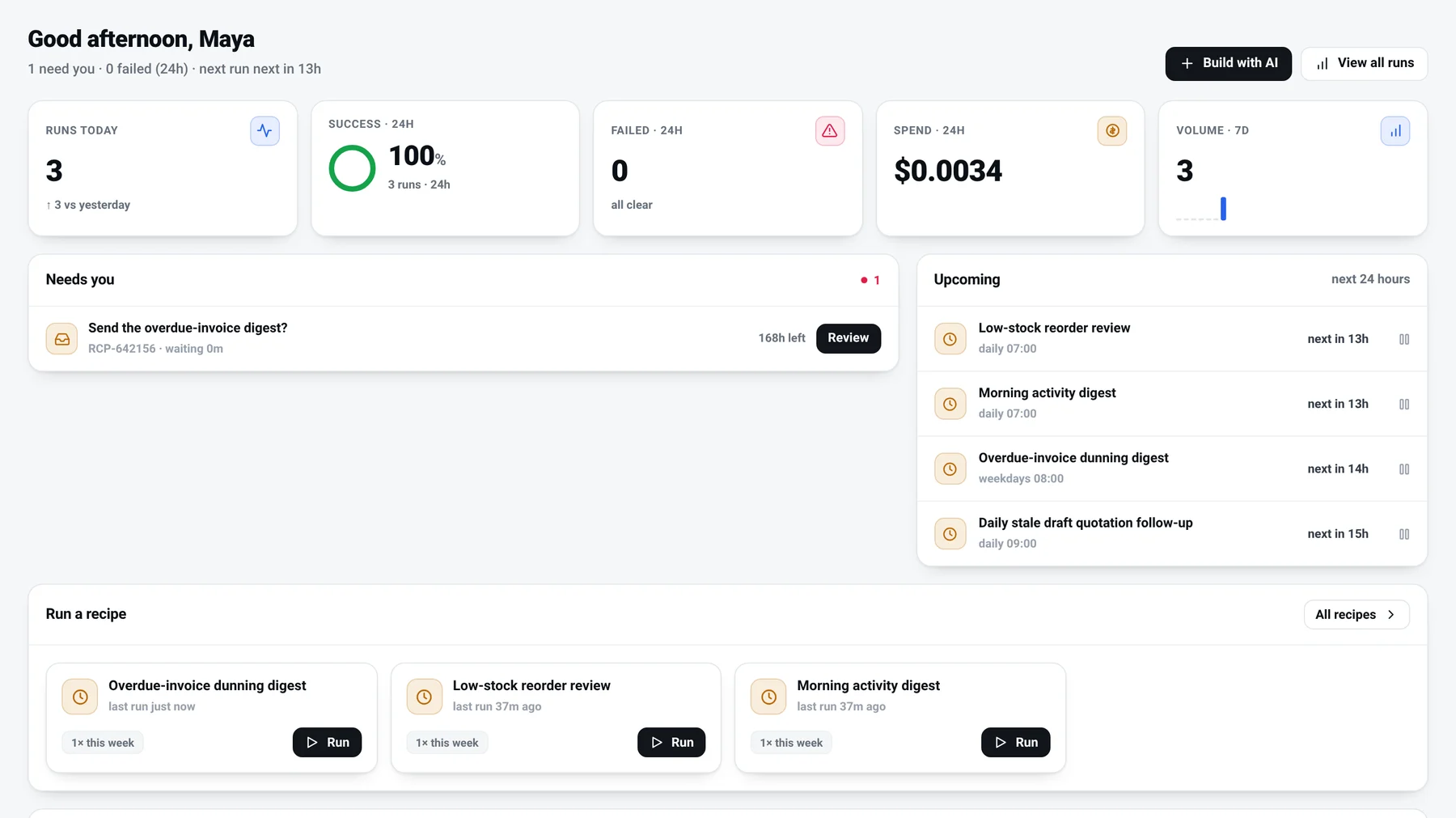
One place to see what needs you, what's coming up, and what already happened.
Your day at a glance. What's waiting for you and what runs next.Every run, step by step. Where it is, what it did, and what's still to come.
Questions
Do I need ERPNext?
No. FrappeOps installs on any Frappe site. With ERPNext it works with your invoices, orders, stock and leads. Without it, it works with whichever apps you run, including your own.
Do I need to know how to code?
No. You describe what you want in plain English. FrappeOps asks when something isn't clear, and shows you the result before anything runs.
Will it do things without asking me?
Only what you allow. Out of the box, looking things up and preparing drafts happen on their own. Sending, changing and submitting ask you first. Deleting is switched off.
What if the AI gets something wrong?
Before anything important goes out, you see exactly what will happen, such as the email as it will be sent or the values that will change. Say no and nothing happens. Every run keeps a history, so you can check what was done and why.
Which AI does it use, and what happens to my data?
You choose. FrappeOps works with major AI services such as Anthropic's Claude, OpenAI and Google, or with a model you run on your own servers, so nothing leaves your system. AI only receives what a step needs, and an admin can switch outside AI services off entirely.
What is an MCP server, and which ones can I connect?
An MCP server is a ready-made connection an app offers so AI tools can work with it. Paste its link into FrappeOps, connect your account, and its tools become steps in your workflows. Slack and GitHub work today, and Notion, Jira and HubSpot are coming soon. FrappeOps also works with every app on your Frappe site, your email inbox, and other web apps through their API.
Interested in FrappeOps?
Leave your email and we'll reach out to tell you more and answer your questions.